How to Wake Up to Any Song on Your iPhone: The Real Step-by-Step
You want to wake up to a song you love, not that default iPhone marimba. Sounds simple. It isn't. Apple makes this weirdly hard. Here's exactly how to do it manually, what it costs, and the free shortcut at the end that skips all of it.
Quick answer
To set a song as your iPhone alarm with the built-in Clock app, you must buy the song from the iTunes Store (~$1.29), then go to Clock → Alarm → Edit → Sound → Pick a Song. Spotify songs and streamed Apple Music tracks don't work reliably. To wake up to any Spotify or Apple Music song for free, use LuxRise.
Method 1: The Apple Music / iTunes way (works, but costs you)
The iPhone's built-in Clock app can use a song as your alarm, but only a song that's purchased and downloaded to your library. Not streamed, not saved from Spotify, not sitting in an Apple Music playlist. Purchased. Here's the honest walkthrough:
What you'll need
- An iPhone with the iTunes Store app (it's still on your phone, search for it if you've never opened it)
- An Apple ID with a payment method attached
- About $1.29 per song
Step-by-step
- Open the iTunes Store app
Not Apple Music, the Store. They're different apps. Apple Music streams songs you rent with a subscription; the iTunes Store sells songs you own forever. Only owned songs work as alarms.
- Search for the song you want to wake up to
Tap Search in the bottom bar and type the song title or artist. Pick the exact version you want. Album version, live version, and remixes are all sold separately.
- Buy the song
Tap the price button (usually $1.29), then confirm with Face ID. The song downloads to your library immediately and it's yours to keep.
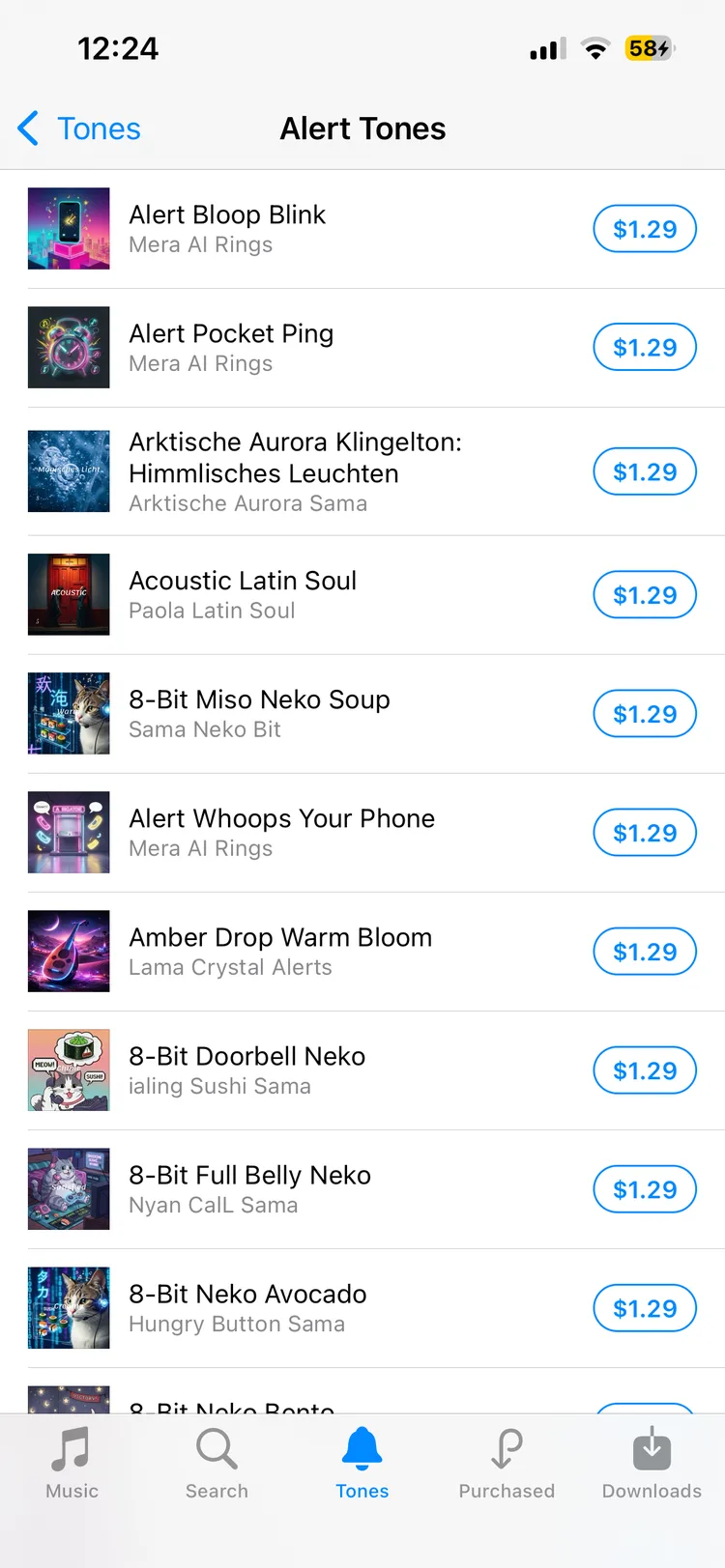
The iTunes Store: everything is a separate ~$1.29 purchase, songs and tones alike. - Open the Clock app and edit your alarm
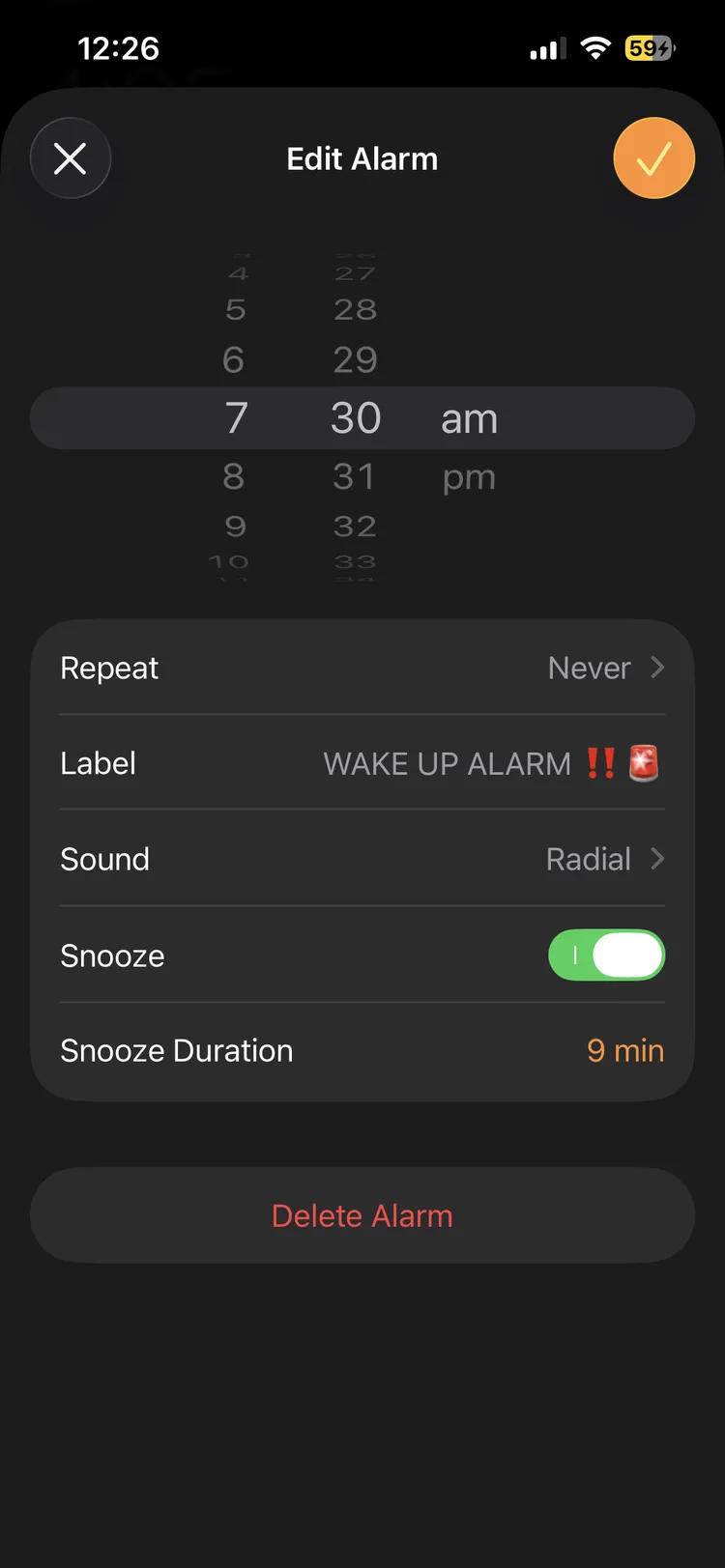
Go to the Alarm tab, tap Edit in the top-left corner, then tap the alarm you want to change. (Creating a new alarm works too, tap the + instead.)
- Tap Sound, then Pick a Song
Scroll past Apple's built-in ringtones to the Songs section and tap Pick a Song. Your music library opens. Only purchased and downloaded tracks will actually work here.
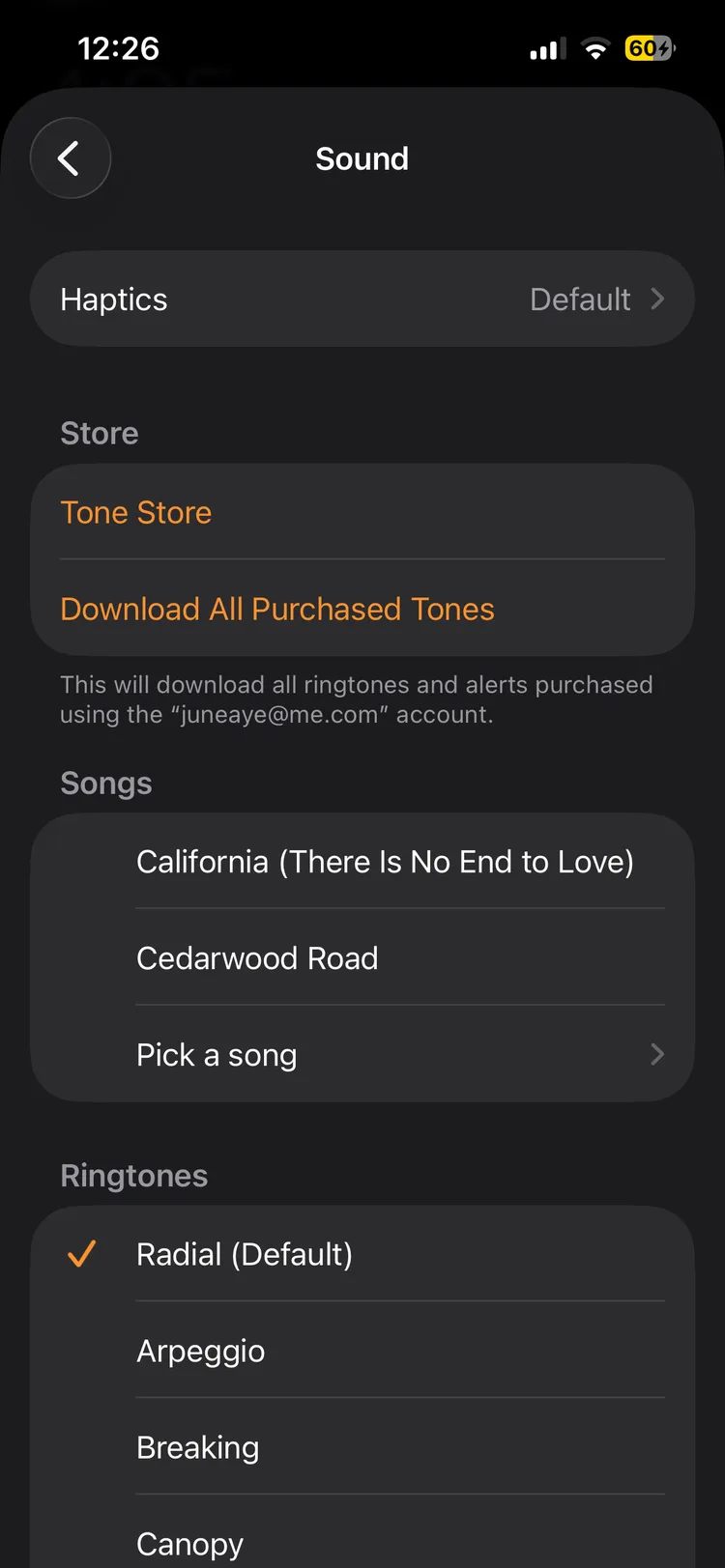
Clock → Alarm → Sound → Pick a Song. - Choose your purchased song and save
Find the song you just bought, tap it, then tap Save in the top-right. Done. Your alarm now plays that song. It starts at full ringer volume, so set your volume before bed.
The catch: you just paid for one song. Want a rotation of 10 so you don't get sick of the same track? That's ~$13 out of pocket, and you're rebuilding it every time you get bored.
Method 2: Apple Music streaming (unreliable, read this first)
If you have Apple Music ($10.99/mo), you can download tracks and use "Pick a Song." But here's what nobody tells you: Apple Music tracks are licensed, not owned. A song you set in January can silently vanish in June when its license changes, and your alarm quietly falls back to a default beep. You won't know until you oversleep.
What breaks, in practice:
- Licenses expire. Labels rotate catalogs constantly. When a track leaves Apple Music, your alarm loses its sound. No warning, no notification.
- Downloads get purged. iOS offloads downloaded music when storage runs low. An offloaded alarm song is a broken alarm song.
- Subscription lapses kill it. Cancel Apple Music (or let a payment fail) and every alarm built on a streamed track reverts to a default tone.
- It's still not Spotify. If your playlists live in Spotify, none of this helps you at all.
Method 3: The Spotify "Shortcuts hack" (why it fails)
People try building a Shortcuts automation to play a Spotify playlist at a set time. Don't rely on it. It's not a real alarm. It's a timer that hopes you're already awake. Here's everything that can (and does) go wrong:
- Silent mode wins. A real alarm rings through the mute switch. A Shortcuts automation playing Spotify doesn't.
- Locked phones block it. Media playback from an automation can fail entirely when the phone is locked, which it will be, at 6:30am.
- Low-power mode kills background triggers. Charging overnight usually saves you; one forgotten cable doesn't.
- Volume is whatever you left it at. Went to bed with media volume at 10%? That's your "alarm" volume.
- No snooze, no dismiss, no fail-safe. If it doesn't fire, nothing rings behind it.
Fine as a nudge. Useless as the thing that gets you to work. If Spotify is where your music lives, our Spotify alarm clock guide covers the setup that actually rings, plus what to do on Android and smart speakers.
The honest scoreboard
| Method | Cost | Spotify? | Reliable? | Fade-in? |
|---|---|---|---|---|
| Buy songs (iTunes) | ~$1.29 each | No | Yes | No |
| Apple Music streaming | $10.99/mo | No | Songs expire | No |
| Shortcuts hack | Free | Yes-ish | No | No |
| LuxRiseOur pick Get it free | Free | Yes | Yes | Yes |
The shortcut: skip all of it
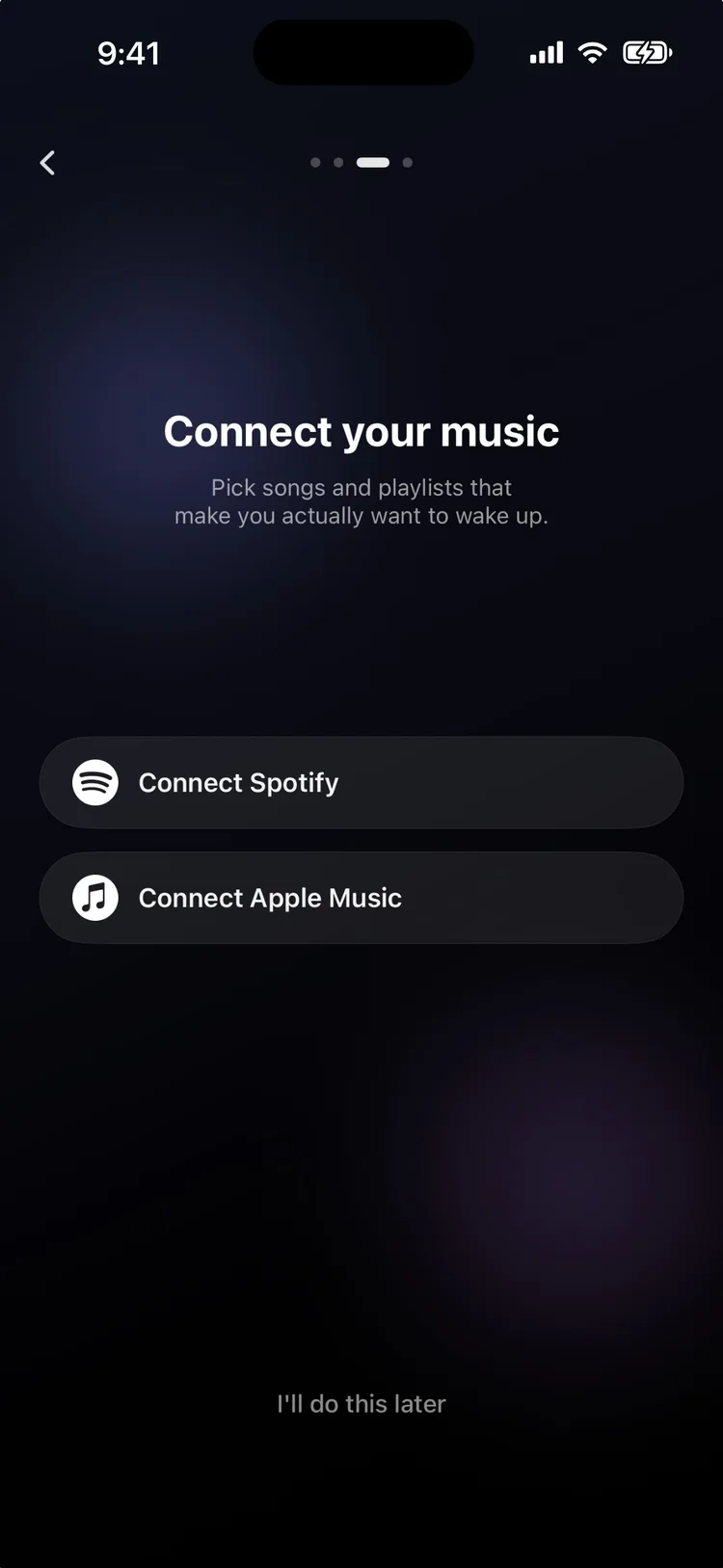
LuxRise does what Apple won't. Wake up to any song from Spotify or Apple Music, streamed live:
- No buying tracks one by one
- No expiring songs, no fragile hacks
- Gentle Fade In, from near-silent to full volume
- Backup layers so you never miss it
- Free. No LuxRise subscription, works with the music you already have
FAQ
Can I set a Spotify song as my iPhone alarm?
Not with the built-in Clock app. It only accepts songs purchased through the iTunes Store. To wake up to Spotify, you need a dedicated alarm app. LuxRise streams any Spotify or Apple Music track as your alarm, free.
Why did my alarm song stop working and go back to the default sound?
Almost always an Apple Music problem: streamed tracks are licensed, not owned. When the license changes or iOS offloads the download, the Clock app silently reverts to a default tone. Purchased iTunes songs don't expire; neither do LuxRise alarms.
Will a music alarm ring if my iPhone is on silent?
A real alarm rings through the mute switch. That includes the Clock app and LuxRise. A Shortcuts automation playing Spotify does not; that's the core reason the "Spotify hack" oversleeps people.
How much does it cost to wake up to a song on iPhone?
The manual route: ~$1.29 per song on iTunes, or $10.99/mo for Apple Music (with the expiring-song risk above). LuxRise is free and uses the Spotify or Apple Music account you already have.
Can my alarm fade in gradually instead of blasting at full volume?
Not with the built-in Clock app. It fires at your ringer volume, instantly. LuxRise has a Fade In setting that raises your song from near-silent to full, so mornings start gently.