How to Block Apps at Bedtime on iPhone, and Actually Stop Scrolling
You did not mean to be awake. You set the alarm, put the phone on the nightstand, picked it up once to check something, and now it is 1:14 a.m. and you are four accounts deep into a stranger's holiday photos.
Willpower is not the missing piece here. The apps are built by teams whose entire job is to make the next swipe easier than stopping, and at midnight your brain is running on its lowest gear. What actually works is removing the option, so the decision is made before you are tired enough to make it badly.
iPhone has a built-in tool for this. It is free, it is called Downtime, and most people who turn it on stop using it within a week. This guide covers why that happens, the three real options for blocking apps at night, and how to set up the one that switches itself off when your alarm rings.
Why "just put the phone down" keeps failing
Three things break the plan, and none of them are about discipline.
- The phone is also the alarm. You cannot leave it in the kitchen if it is the thing that wakes you. So it stays within arm's reach, unlocked, one tap from everything.
- The block has an off switch you control. Any limit you set at 9 p.m. can be dismissed at 11 p.m. by the same person, who now wants very much to dismiss it.
- Nothing marks the end. A blocker that runs on a clock schedule has no relationship to your actual night. It ends at a time you guessed at weeks ago, not when you wake up.
The fix is not a harder lock. It is a block that costs more to undo than it does to leave alone, tied to something you already set every night anyway.
What iPhone gives you already, and where it stops
Two built-in features get suggested for this, and they do different things. It is worth knowing which is which before you install anything.
Sleep Focus silences notifications, dims the Lock Screen and hides everything but what you allow through. What it does not do is stop you opening an app. Sleep Focus is why your phone stays quiet. It is not why you put it down. If you have been using it and still end up scrolling, that is the feature working exactly as designed.
Screen Time Downtime is the one that actually blocks. In Settings you set a start and end time, choose which apps stay allowed, and outside that window everything else goes grey with a time-limit screen. It is free and it is on every iPhone.
Downtime's problem is not power, it is friction in the wrong direction. Getting past it takes one tap on "Ignore Limit". Setting it up means maintaining a second schedule in Settings that has no idea what time you actually set your alarm for. And if you turn on "Block at Downtime" to make it harder, you now need a Screen Time passcode you will be typing in half asleep.
So the honest summary is: Downtime works, and most people abandon it. Not because it fails, but because it is one more thing to run.
The three ways to block apps at bedtime
| Option | Cost | How it ends | The catch |
|---|---|---|---|
| Screen Time Downtime | Free, built in | At the clock time you set | A separate schedule to maintain, and "Ignore Limit" is one tap |
| Dedicated blockers (Opal, one sec, ScreenZen, Jomo) | Mostly subscription, some free tiers | On their own schedule or session timer | Built for work focus first, bedtime second. The good ones cost money |
| LuxRise | Free, no ads, no subscription | When your alarm rings | It only covers bedtime to wake-up, not your working day |
The dedicated focus apps are genuinely good at what they are for, which is protecting your working hours. Opal in particular is built around deep work sessions and blocked schedules across the whole day. If that is your problem, that is the category to look at, and most of them ask for a subscription to do it properly.
Bedtime is a narrower problem, and it has one thing going for it that the workday does not: you already set an alarm. That alarm is a start and an end, sitting right there, that you maintain every single night without thinking about it. A bedtime blocker that hangs off the alarm needs no second schedule at all.
How to block apps at bedtime with LuxRise
LuxRise is a free music alarm app. It wakes you to your own Spotify or Apple Music, and it now has a Block Distractions setting that turns off the apps you name for the night. It is free, with no ads, no subscription and no in-app purchases.
- Open the alarm you use, and scroll to Block Distractions near the bottom. Tap Blocked apps.
- Turn on Block apps at bedtime.
- Approve the Screen Time permission. iOS asks once, you confirm with Face ID, and that is the whole setup. This step is required: blocking apps on iPhone is only possible through Apple's Screen Time system, so no app can do it without your explicit approval.
- Tap Blocked apps and pick what to shut off. You can choose individual apps or whole categories, so "Social" in one tap is a real option instead of naming six apps.
- Leave your music app unblocked. The screen warns you about this for a reason: if you block Spotify, LuxRise cannot use it to play your alarm song.
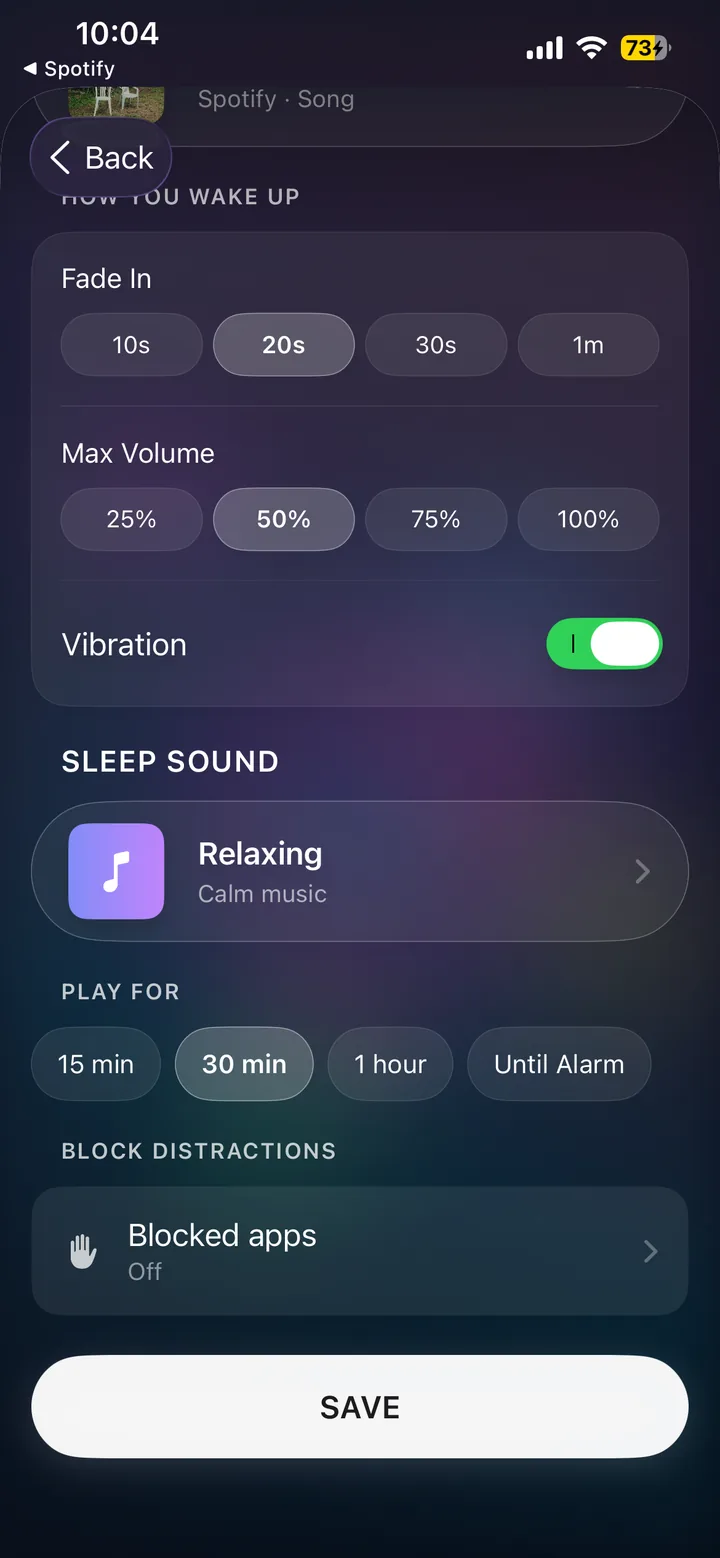
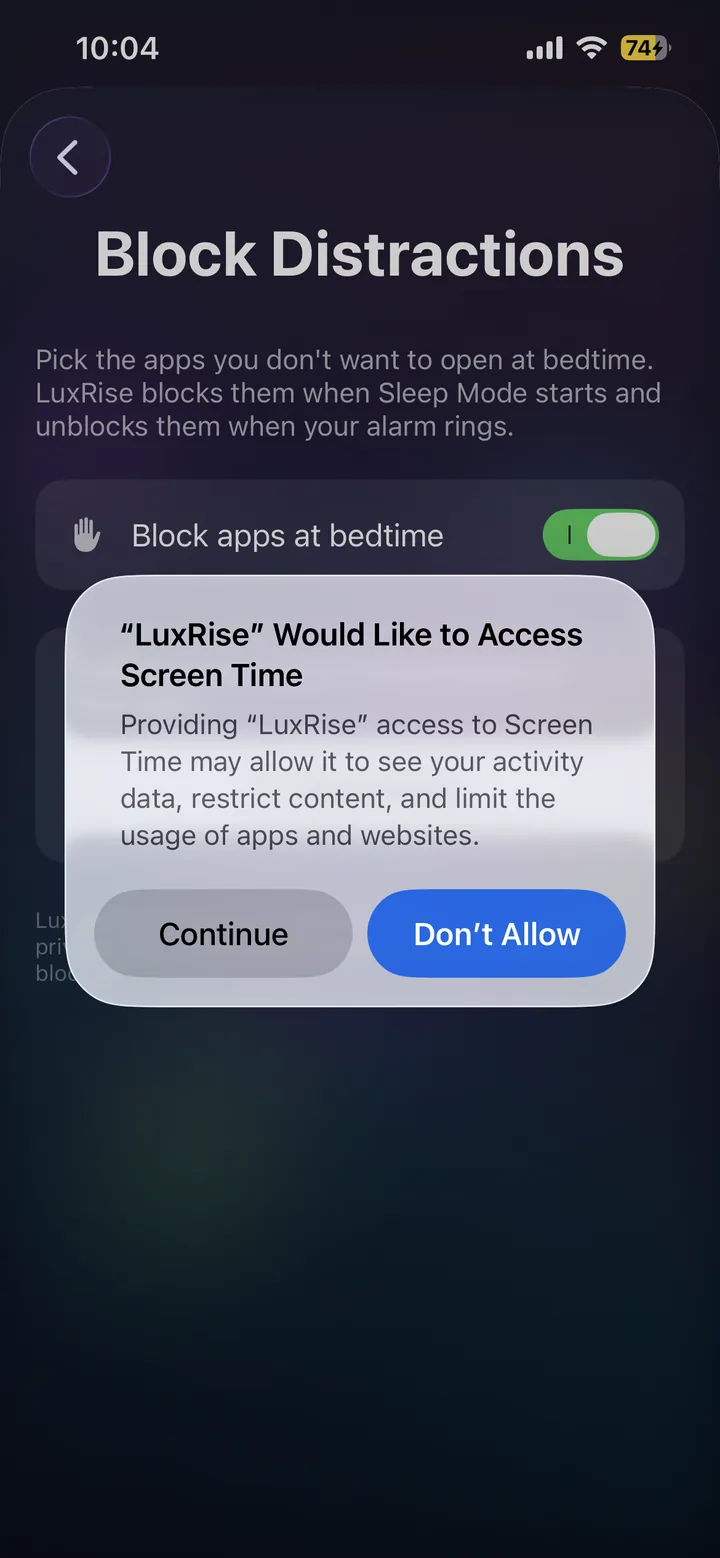
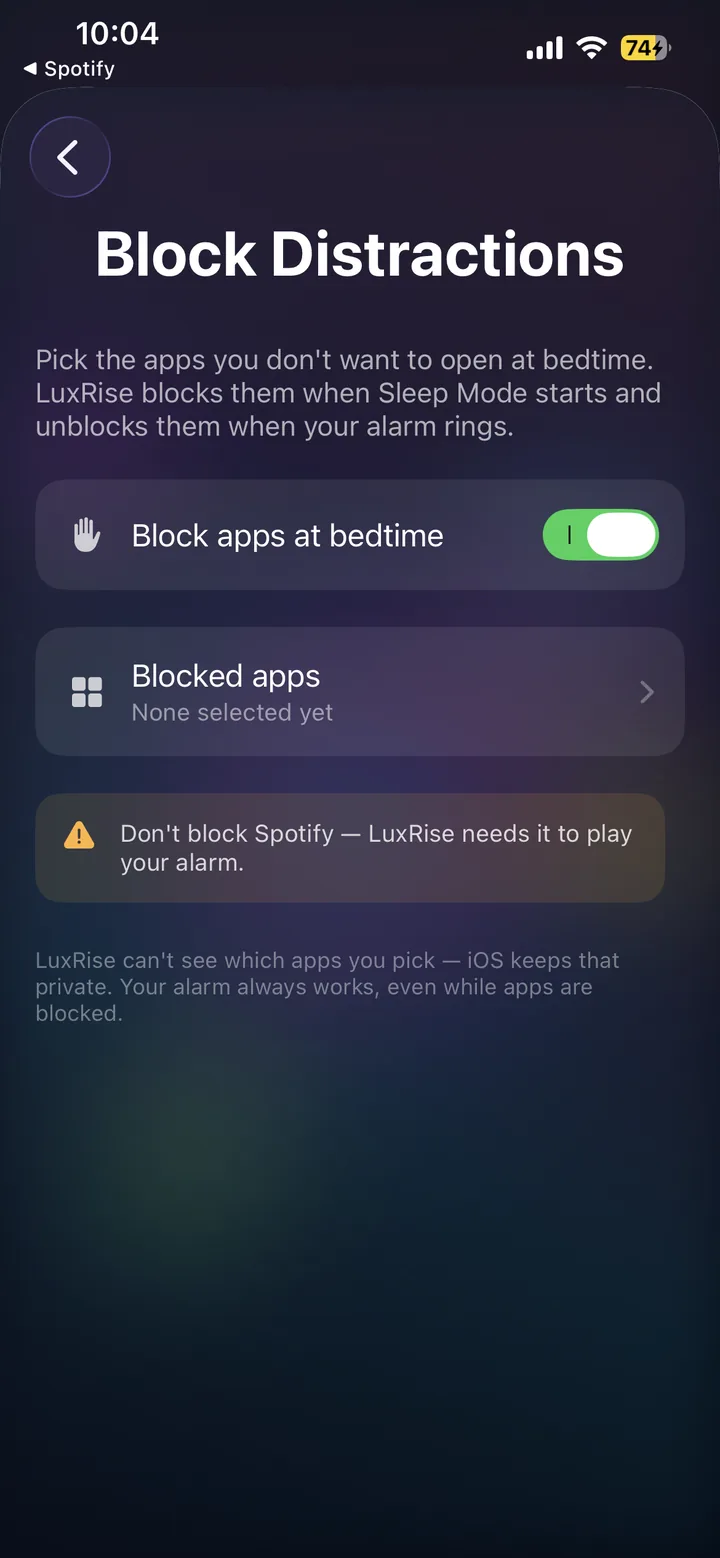
From then on, the apps you picked go dark when Sleep Mode starts and come back when your alarm rings. There is nothing to remember and nothing to switch off in the morning.
Download LuxRise free on the App Store, no ads, no subscription.
Two things worth knowing about how it handles your data and your morning:
- LuxRise cannot see which apps you picked. The list is held by iOS, not by the app. That is Apple's design, not a promise we are making about ourselves, and it applies to every app that uses this system.
- Your alarm still rings while apps are blocked. The block and the alarm are separate. If streaming fails for any reason, a built-in backup sound rings at your set time regardless, which is the same reliability the music alarm runs on.
What this can and cannot do
Being straight about the limits is more useful than overselling it, so here they are.
It is friction, not a cage. You can open LuxRise and turn the toggle back off. Anyone can. What it removes is the automatic, half-conscious tap, the one where your thumb finds the app before you decide to open it. That tap is most of the problem. A determined 1 a.m. decision to override it is not something any app on iPhone can stop, and any app claiming otherwise is selling you something.
It covers bedtime to wake-up, not your day. The window runs from Sleep Mode to your alarm. If you want apps blocked during work hours or a study session, this is the wrong tool and Screen Time Downtime or a dedicated focus app is the right one.
It needs the Screen Time permission. If you decline the prompt, the feature simply cannot run. You can grant it later in Settings under Screen Time if you change your mind.
It is iPhone only, on iOS 18.6 or later. There is no Android version.
What to block, if you are not sure where to start
Most people over-think this and end up blocking so much that they turn the whole thing off by Thursday. A smaller list survives longer.
- Start with the one app you actually lose the hour to. You already know which one it is. Block that alone for a week.
- Then add the category, not more apps. If social is the pattern rather than one specific app, the category picker catches the replacements you would have drifted to instead.
- Leave messages and calls alone. Blocking the ways people reach you in an emergency buys you nothing and makes the setup feel unsafe, which is how it ends up switched off.
- Never block your music app. LuxRise needs Spotify or Apple Music to play your alarm song.
If the goal is falling asleep faster rather than just scrolling less, pairing the block with something to listen to works better than silence for most people. We went through what the evidence supports in what to play to fall asleep, and the sleep timer stops it on its own so it is not playing at 4 a.m.
FAQ
Can an app block other apps on iPhone?
Yes, through Apple's Screen Time system. Any app that blocks other apps has to ask for Screen Time permission first, and you approve it with Face ID. Without that approval no third-party app can restrict anything on your iPhone.
How do I block apps at bedtime on iPhone for free?
Two free options. Screen Time Downtime is built into Settings and blocks on a clock schedule you set yourself. LuxRise is a free app that blocks the apps you pick from the moment Sleep Mode starts until your alarm rings, with no ads or subscription.
Does Sleep Focus block apps?
No. Sleep Focus silences notifications and changes your Lock Screen, but you can still open any app on your phone. If you are looking for something that stops you opening TikTok in bed, Focus is not it.
Can I still be reached in an emergency if apps are blocked?
Yes, as long as you do not block Phone and Messages, and there is no reason to. You choose the list, so calls and texts stay available unless you deliberately shut them off.
Does LuxRise see which apps I block?
No. iOS holds that selection privately and does not share it with the app. This is how Apple's Screen Time framework works for every app that uses it, including this one.
Will my alarm still go off while apps are blocked?
Yes. The alarm and the block are independent, and the alarm has a built-in backup sound that rings even if streaming or your network fails.
What happens if I block Spotify by mistake?
Your alarm cannot play your song, because LuxRise needs Spotify to stream it. The backup sound still rings, so you will wake up, but leave your music app off the blocked list.
Is this the same as Opal?
No. Opal and similar focus apps block apps across your whole day on schedules you build, and most charge a subscription for it. LuxRise blocks only from bedtime until your alarm, and it is free. Different problems.
Block the scroll until morning
Pick the apps you keep losing an hour to, and LuxRise shuts them off from bedtime until your alarm rings. Free, with no ads and no subscription, on the music account you already have.
Download LuxRise Free